
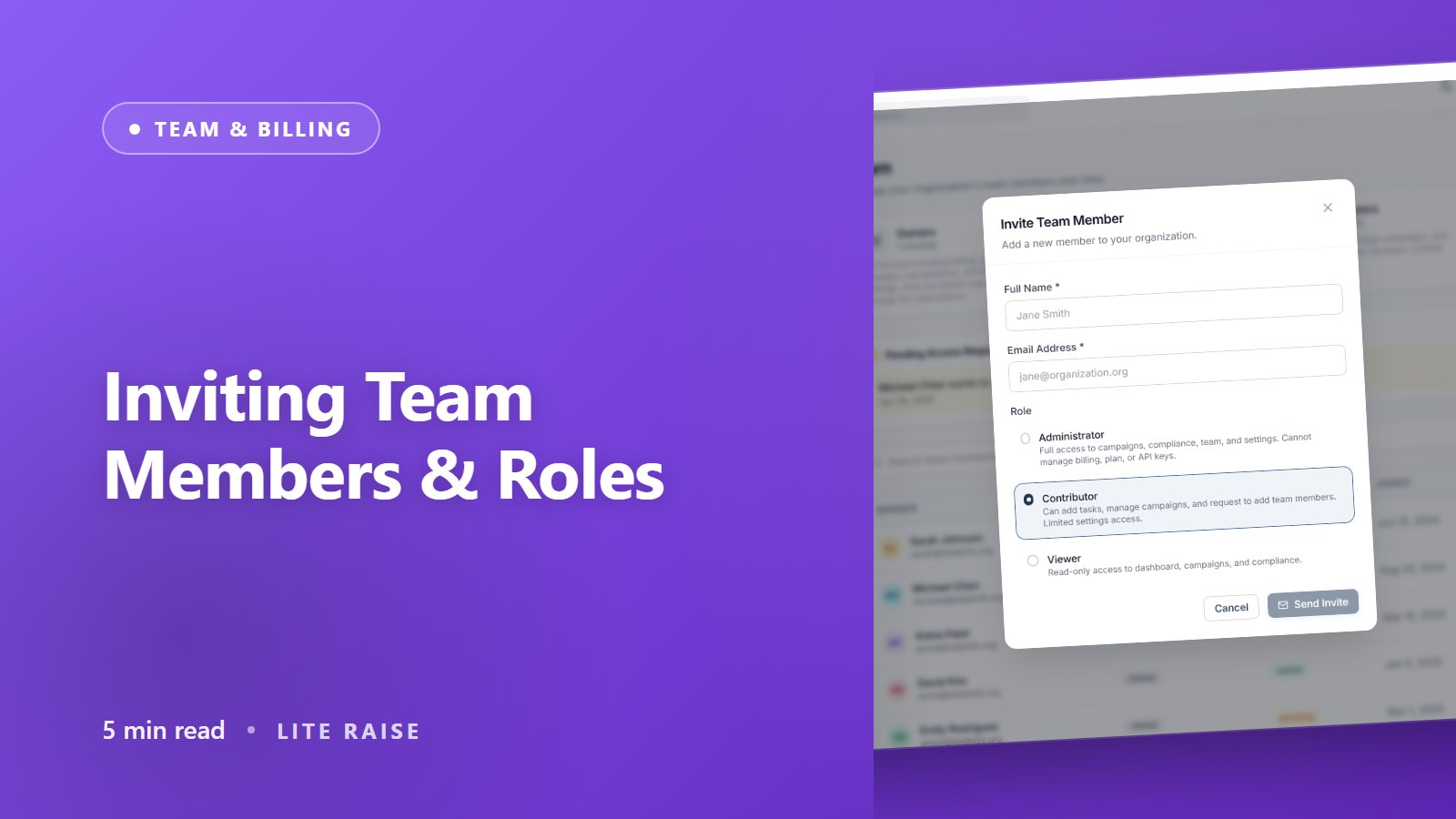
Inviting Team Members & Roles
How to invite staff, what each role can do, and how to safely transfer ownership.
Roles overview
- Owner — full access, billing, can transfer ownership. One per organization.
- Admin — full access except billing changes and ownership transfer.
- Collaborator — can manage campaigns, donors, and compliance but cannot change settings or invite others.
- Viewer — read-only access. Useful for board members and accountants.
Inviting someone
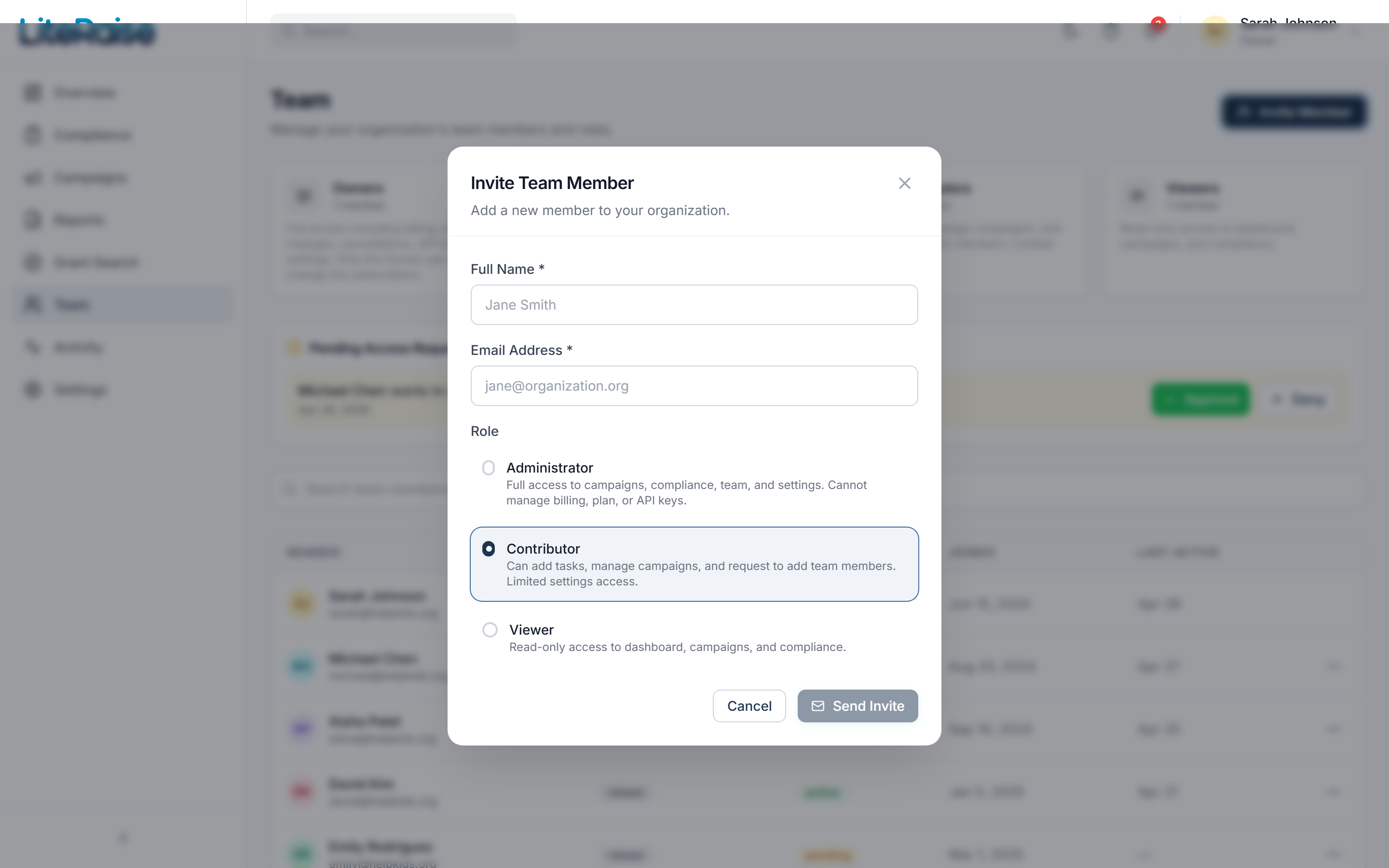
- 1Go to Team
Sidebar → Team. Click Invite Member.
- 2Enter their email and role
They get an email with a secure link. The link is single-use and expires in 7 days.
- 3Re-send if needed
If they didn't get the email, click the three-dot menu next to their pending invite and Resend.
Two-factor authentication
Owners can require 2FA for the entire organization in Settings → Security. When enabled, every team member must enroll an authenticator app at next login. Recovery codes are generated at enrollment — print and store them somewhere safe.
Removing or disabling members
Click the three-dot menu next to a member to:
- Change their role
- Disable their access (preserves their activity history)
- Permanently delete (only available if they have no audit trail entries)
Transferring ownership
Settings → Organization → Transfer Ownership. The new owner must already be on the team and must accept the transfer via an email confirmation. After transfer, the old owner becomes an Admin.