Launching Your First Campaign
From an empty dashboard to a live donation page in under 15 minutes.
This walkthrough takes you from a blank dashboard to a live, public donation page that accepts real money. Set aside 10–15 minutes.
Step 1 — Create the campaign
- 1Open Campaigns
From the dashboard sidebar click Campaigns, then the New Campaign button in the top right.
- 2Choose a template
Pick from Classic (long-form), Modern Card (image-led), or Minimal (text-first). You can switch templates later without losing content.
- 3Enter the basics
Title, subtitle, fundraising goal in dollars, and a deadline if you want a countdown. Slug auto-generates from the title and is editable.
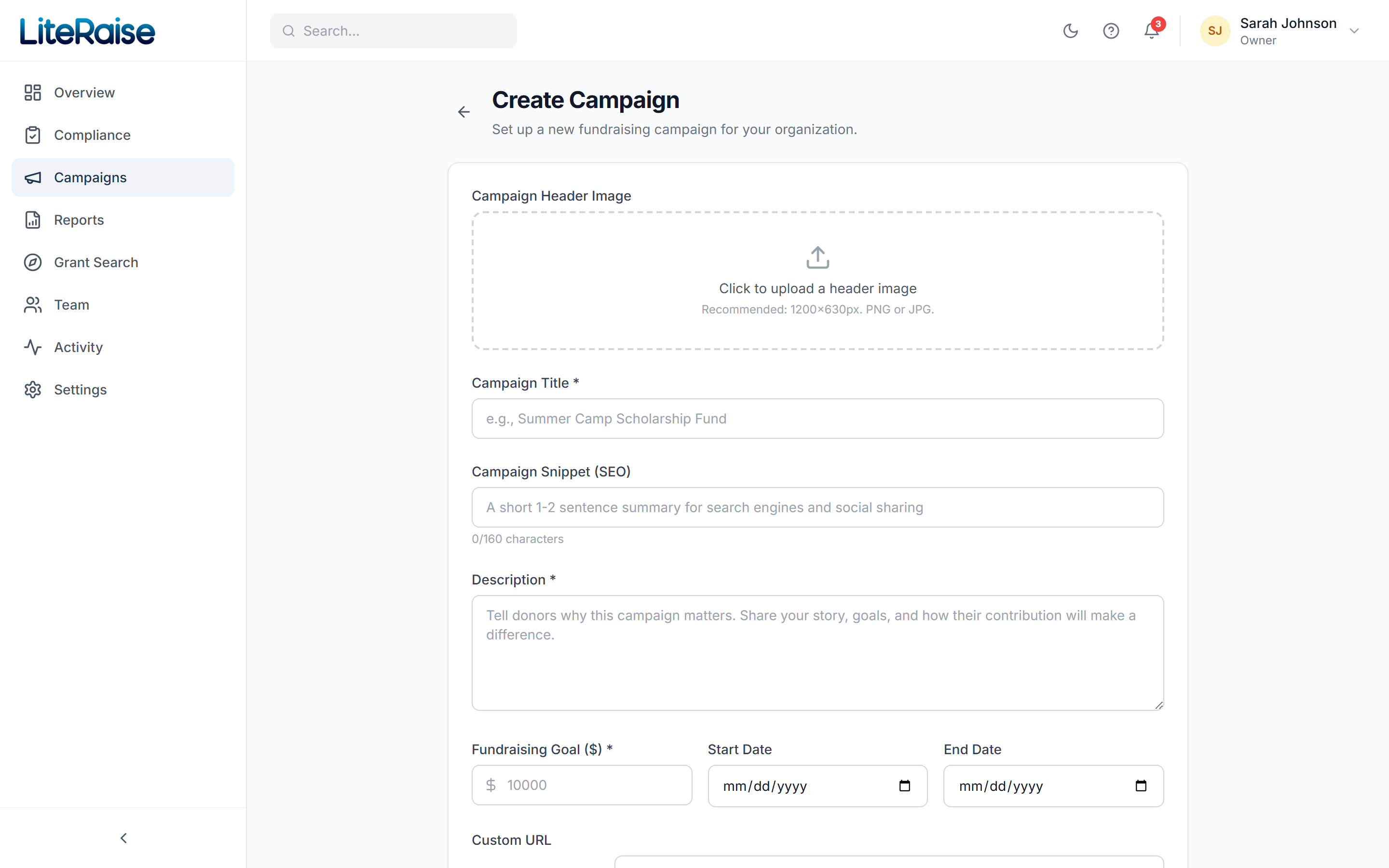
Step 2 — Tell your story
Use the rich text editor to write 2–3 short paragraphs. Donors who read past the headline give 2.4x more on average, so include:
- Who benefits — be specific (a name, a town, a school)
- The exact problem you're solving
- What $25, $50, $100 each accomplishes
- Photos — even one image triples conversion
Step 3 — Add reward tiers (optional)
Reward tiers turn a donation into a transaction. Common patterns:
- $25 — handwritten thank-you note
- $100 — name listed on website donor wall
- $500 — invitation to annual donor dinner
Each tier can have a quantity limit (e.g. 'first 50 donors'). Limits update in real time as donors give.
Step 4 — Preview and publish
- 1Preview your page
Click Preview to see exactly what donors will see. Test on mobile too — most donations come from phones.
- 2Publish
Click Publish. Your page is live at yourorg.literaise.com/c/your-slug. Share that URL on social, in email, on your website.
- 3Watch donations roll in
Real-time updates appear in your dashboard. Each donation triggers an automatic tax receipt to the donor and (if amount ≥ $500) an alert to your team.
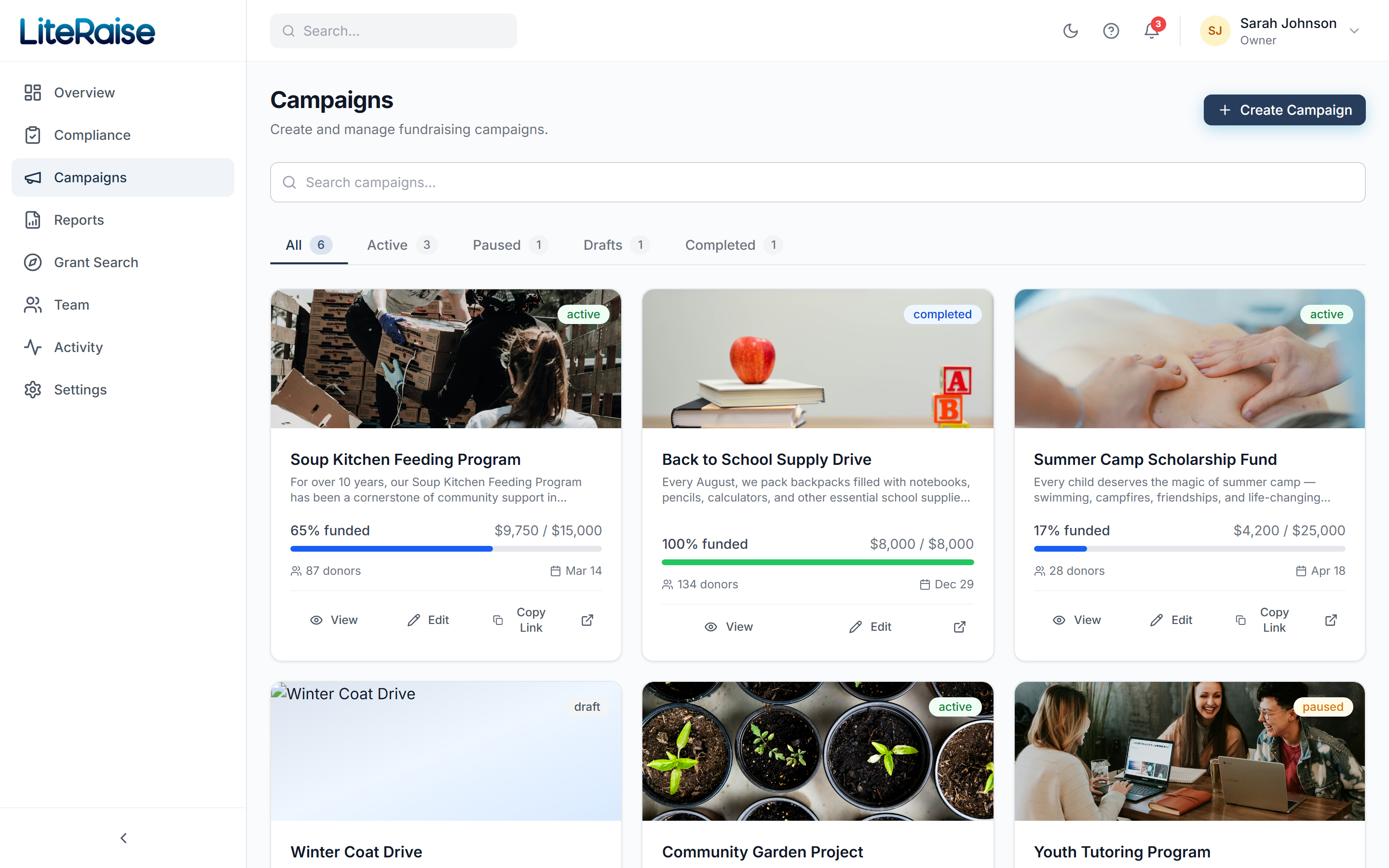
Your campaigns list
Once you have multiple campaigns running, the Campaigns page becomes mission control — filter by Active / Paused / Drafts / Completed, see live progress against goal, click into any card to view donations or edit content.